Tutorials
Tutorial Contents:
As I had mentioned previously, somewhere on this site, (although at the moment I admit I don't know where) I am going to start off with the Web Design stuff. It seems that it is the most in demand at the moment. Hopefully I will be able to get a couple together each week.
Then I will take requests after that, because I know how to do everything!!!!!
| The Tutorials |
|
The Tools |
|
Further Learning |
|
Web Design
Getting Started |
|
Domain Names Free Hosting FTP Client |
|
Web Design |
Getting Started
1. Domain Name:
A typical Domain Name would be something like www.yourdomain.com (yourdomain = the actual domain name you choose). The bold italicised part is the actual domain name itself. If you are just dabbling around or doing something for fun you can usually get a subdomain for free along with free hosting (I will get into that later). If you are a business, however, or just want to have a more legitimate presence on the web, you will want to get your own domain name.
Internic has a list of ICANN accredited registrars, I use Godaddy. Godaddy has domain names for $7.95 per year which is cheap enough that I don't bother searching for anything else. Some places will advertise free domain names, but you have to host your site with them, that's the catch.
Now this solution is good if you already have the space to host the site, if you are planning on using a free hosting provider, or if you just want to reserve the name. When you start building sites that require more hosting features, they will often throw in the domain name for free, so that is something to keep in mind.
Once you have purchased your Domain Name, or have decided to use a free subdomain name (eg. - www.yourdomain.yourhostingprovider.com) you are ready to move on to the next step.
2. Hosting:
To have a website that is accessible to the world at large via the wonderous and ever-expanding world wide web (www), you need to have your pages stored on a server that is connected to it and able to serve up your pages on request. Last time I checked there were about 45 bazillion hosting companies that range from free to big bucks depending on services and requirements needed.
Basic Hosting Features:
Storage Space - Just like your hard drive. This is the total amount of space you have to store your website.
Because you are going to be compressing files to make them load faster in peoples browsers, the space goes a long way.
Currently this website is coming up on 100 pages and is just over 5mb in size.
Bandwidth - This is the total amount (in size) of files that you will be allowed to serve up to the public. For example every time you open a new page in your browser, the files are loaded from the server that is hosting the website, to your browsers cache folder. If the page has 23k worth of files total, you have just used up 23k worth of bandwidth. If you are not expecting a lot of traffic (ie, personal web page) than it probably won't be an issue. If you have a lot of traffic and large files (video, mp3, etc.) than you will probably have to pay for the higher bandwidth. We have a maximum of 40gb a month here and have come nowhere near that yet.
Direct Ftp Access - A lot of the freebie hosting providers have their own interface for uploading files to your site. If you are going the free route (which I recomment for your first attempt at this anyway) find a hosting provider that allows you to use Ftp to manage your files such as freewebpage.org.
Software Support - If you need to run server side applications, does the server support CGI, MySQL, PHP, ASP, etc... This comes into play when you want to have a truly interactive site. Bulletin boards, shopping carts, form processing, and content management systems are just a few examples of website features that require some sort of server side program. What technology you use will depend on the platform (Linux/Windows) of your server, the specific functionality you are looking for, and/or the languages/technology you are most familiar with. This is obviously a subject for later tutorials, for now you should be able to make do with whatever you happen to get by just using premade programs and scripts.
Speed, Security, and Reliability - I toyed around with the idea of putting together my own apache server again for a little while. When it came down to it, for the amount of time and aggravation I could save by using a professional hosting provider the cost was more than justified. A good hosting service is going to have a 99.9% up time, 24/7 monitoring and security, and a high speed OC-48 connection. So unless you want to do it for the learning experience, or you have an extraordinarily large amount of data you want to make available on the web, I can't say that I recommend running your own server.
For those of you who want to get your feet wet, let's start with freewebpage.org, as a hosting provider (you will get the annoying banner, but hey, it's free and it works for learning the basics) and use the free subdomain name that you get with this service. Good! Now we are ready for step 3.
3. FTP (File Transfer Protocol):
Once you have your server, you need a way to transfer files back and forth between your computer and your server (which could be in Bangladesh for all we know). This is where FTP comes in. There are several free FTP client softwares out there, I prefer the no frills approach of WS_FTP. It comes in two flavors WS_FTP PRO (which I recommend if you have the means to get a copy), or WS_FTP LE (which is free and I am putting the link to it right here so you have no excuse).
Now that you have your FTP client software installed, you need to configure it to connect to your server. Start off by adding a new site to your list. Basically you really only need to apply three settings.
Host Name - this is the name of your server, usually something like ftp.yourdomainname.com
(if you are using freewebpage.org it will be yourdomain.freewebpage.org).
User ID - the name you log onto your server with, usually provided by hosting provider, (with
freewebpage.org it will be yourdomain)
Password - your password, I suggest you check the save password box for convenience (unless you are
ultra-paranoid) as you will be logging off and on fairly often in all likelyhood.
Manuals and Tutorials:
WS_FTP LE
WS_FTP PRO
Now You should have a domain name, a server to host your site, and an ftp program to allow you to transfer your files from your computer to your server, and vice versa. Let's go on to step 4.
4. Understanding the File Structure:
A website consists of a few different basic types of files.
HTML Documents - (*.htm)
HTML is what is known as a markup language. It is far simpler than a programming language because all it is really
doing is telling your browser where particular items on your page should be displayed. It is a small set of instructions
that say 'get this picture from here and display it here', or 'get this flash file and display it here', or 'display
this text here, like this', etc... The images, and other multi-media content are usually stored elsewhere on the server.
The html file just tells your browser where they are, and where to put them in the layout of your page.
Jpeg Images - (*.jpg)
Along with gif the most common form of image file on the internet. Supported by all modern browsers, and highly compressed for optimal download speeds. Jpeg is usually the best format to use for ct (continous tone, photograph) type images. Jpeg does not support transparancies or multiple frames (animations).
Gif - (*.gif)
Gif files are limited to 256 colors, so are not as good for photos, but are better suited to graphic style images. Gif supports transparant backgrounds, and multiple frames (animations)
Flash Movies - (*.swf)
The Macromedia Flash player is now included with most browsers, and allows for a much higher degree of control of graphics and interactivity. Within a flash movie, fonts can be embedded, objects can be assigned a large assortment of behaviors to bring a higher level of interactivity to your site. Because Flash is vector based, it can be highly compressed and for this reason it is well suited to deliver content on the web.
Javascript - (*.js)
Javascript is a scripting language that is supported by most of the new browsers. It allows for additional functionality of the website by running 'client-side' scripts (aka, run on your machine, not on the server). Although javascript does not give you the true interactivity that a server side program allows, it is often a good solution for expanding the very limited features of html, without having to use up the servers resources.
Audio Files (*.aif, *.mid, *.mp3, *.wav)
We will be getting into more detail about audio, and how to prepare audio files for use on the web in the audio tutorials. For now these basic audio types, AIFF, MIDI, MP3, and WAV, are the most common types you will run into on the internet.
There are other types of files that you will end up dealing with in the long run, but for now I think this is a good
start.
What you have to do now is prepare a place to build your website on your machice. The first folder you make is
essentially your root folder for the entire site. This is where your index.htm file will reside. The importance of the
index.htm file is that it is the file web browsers will default to when no other file is specified.
For example: If you type www.oddzone.com/odd.htm into the address bar of your browser, the server will hand you odd.htm and all it's support files. If you just type in www.oddzone.com, you will get the index.htm file (assuming there is one). For this reason it is usually a good idea to name your home page index.htm
When you log on to your server using your FTP program, there will either be a www folder, a public_html folder, or you will actually be in the www folder when you log on. (the trick is to look for the one with the index.htm file in it.) This is the folder that you will copy the contents of your local website folder to.
Here is my locally stored website for centerstagedesign. I keep it in a tidy little folder with the exciting and
original name, website!
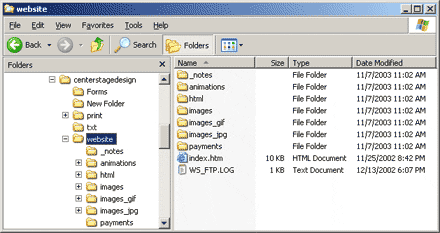
The contents of the folder website on my local machine are equal to the contents of my www folder on my server. This was
the first site I ever built, and if you notice I have an images folder, and images_gif folder, and an images_jpg folder.
(not very organized). Generally now I like to keep all my html in one part - subdivided into folders for each major
category, and the images for each major section in another. Keeping your files organized in this manner allows you to
make changes to one portion of the website and just upload the entire folder, but at the same time allows you to select a
specific area of the site so that you dont have to wait 20 minutes to upload.
5. Website Building Tools:
Theoretically, all you really need to write html is a basic text editor. Although it is perfectly adequate to hand code your html, (and I have used notepad on occassion to write html, when it was all I had available), it is much more practical to have an html editor that will highlight and color code elements and just generally be a little aware of what you are doing. This is known as a language sensitive editor and is a very handy tool indeed.
These are the tools that we recommend to get started.
FTP Client
See 3. FTP (File Transfer Protocol): for details.
Language Sensitive Editor
I highly recommend Macromedia Dreamweaver as an HTML/Javascript editor. There will aslo be a
Dreamweaver tutorial and links to Dreamweaver resources to get you going with this. If you are using Dreamweaver the
F1 help is pretty good too. Dreamweaver not only color codes your elements but has predictive text that automatically
fills in code and saves you a lot of typing (and memorizing quite frankly). Sometimes I am at odds with Dreamweaver and
it seems to have a different idea of what I am trying to do than I do. This happens and can be pretty frustrating but
once you develop a rhythm with it you will definitely be saving time more often than not. If you don't have Dreamweaver
and can't get a copy of it, there are a lot of alternatives, such as notepad++ and well take a look around and pick your
flavor basically but I recommend some form of html editor.
Graphics Editor
You will need a program to edit image files. There are two basic varieties. Vector and Raster graphics. Vector programs
such as Adobe Illustrator, are better suited for graphic design type work.
Adobe Photoshop deals with a Rasterized (or bitmap) format, which is much better suited for
with ct (continious tone) images such as a typical photograph. One way to think of it is flat logo type images are more
suited to vector graphics while blended shaded images will be easier to deal with in a raster editor. I like Illustrator
and Photoshop, because that is what I am used to. Macromedia's Freehand and Fireworks are both
good applications for outputting web graphics too. For those of you who have no means of getting any of these try
Eyebrowse for free.
6. Do I need to Learn HTML?:
No. You can always use an online cms website builder like myspace, but if you want true freedom of design you really do need to learn HTML. The good news is you can be up an running with basic HTML in a matter of hours. A basic website rarely needs more than a couple dozen tags so not only is it easy to learn, but it is also a nice way to get your feet wet for learning more indepth programming languages such as Javascript or PHP (which you will not likely get a good grip on in a matter of hours unless your a cyborg perhaps).
So the short answer is, if you really want to build websites you will end up learning it whether you want to or not.
When you add and remove elements from your webpage via your handy dandy html editor, sometimes what the editor interprets you are trying to do, is not exactly what you are in fact trying to do. This is when you say, thank god I have a decent understanding of html, or I would be tearing my eyes out and eating them by now.
7. Fine, I have to learn HTML, What Now?:
You know I am really glad you asked me that.
What I suggest you do is to go over the next two tutorials, while simultaneously playing around with your html editor to build a couple practice pages.
I learned myself via the cut and paste method. Whenever you see something you like on a website, view the source code in your browser. (In IE that would be View>Source Code) Cut and copy the parts you are interested in. Also copy entire pages onto your machine with all the support files (In IE that would be File>Save As>Web Page Complete), and try opening them in your html editor. Play around, make some changes, and reference the HTML Basics, and HTML Tag Reference tutorials while you do it. Also make use of the excellent Dreamweaver help (F1) if you are using Dreamweaver.
It is really a pretty simple language and should start to make some sort of sense within a short period of time. It is not really necessary to memorize every tag, just to get enough of an understanding that you can guess what you need to reference.
So what do you say, let's move on to HTML Basics.
HTML Basics.
Basic HTML Structure:.
1.Elements and Tags:
Elements are the structures that describe parts of an HTML document. For example, the P element represents a paragraph
while the EM element gives emphasized content (visually italic).
An element has three parts: a start tag, content, and an end tag. A tag is special text--"markup"--that is delimited by "<" and ">". An end tag includes a "/" after the "<". For example, the EM element has a start tag, <EM>, and an end tag, </EM>. The start and end tags surround the content of the EM element:
<EM>This is emphasized text</EM>
Element names are always case-insensitive, so <em>, <eM>, and <EM> are all the same.
Elements cannot overlap each other. If the start tag for an EM element appears within a P, the EM's end tag must also appear within the same P element.
Some elements allow the start or end tag to be omitted. For example, the LI end tag is always optional since the element's end is implied by the next LI element or by the end of the list:
<UL>
<LI>First list item; no end tag
<LI>Second list item; optional end tag included</LI>
<LI>Third list item; no end tag
</UL>
Some elements have no end tag because they have no content. These elements, such as the BR element for line breaks, are
represented only by a start tag and are said to be empty.
2. Attributes:
An element's attributes define various properties for the element. For example, the IMG element takes a SRC attribute
to provide the location of the image and an ALT attribute to give alternate text for those not loading images:
<IMG SRC="wdglogo.gif" ALT="Web Design Group">
An attribute is included in the start tag only--never the end tag--and takes the form Attribute-name="Attribute-value". The attribute value is delimited by single or double quotes. The quotes are optional if the attribute value consists solely of letters in the range A-Z and a-z, digits (0-9), hyphens ("-"), and periods (".").
Attribute names are case-insensitive, but attribute values may be case-sensitive.
3. Special Characters:
Certain characters in HTML are reserved for use as markup and must be escaped to appear literally. The "<"
character may be represented with an entity, <. Similarly, ">" is escaped as >,
and "&" is escaped as &. If an attribute value contains a double quotation mark and is delimited
by double quotation marks, then the quote should be escaped as ".
Other entities exist for special characters that cannot easily be entered with some keyboards. For example, the copyright symbol ("©") may be represented with the entity ©. See the Entities section for a complete list of HTML 4.0 entities.
As an alternative to entities, authors may also use numeric character references. Any character may be represented by a
numeric character reference based on its "code position" in Unicode. For example, one could use ©
for the copyright symbol or ا for the Arabic letter ALEF.
4. Comments:
Comments in HTML have a complicated syntax that can be simplified by following this rule: Begin a comment with
"<!--", end it with "-->", and do not use "--" within the comment.
<!-- An example comment -->
5. A Complete HTML Document:
An HTML document begins with an HTML tag. The HTML element follows and contains the HEAD and BODY. The HEAD contains
information about the document, such as its title and keywords, while the BODY contains the actual content of the
document, made up of block-level elements and inline elements. A basic HTML document takes on the following form:
<HTML>
<HEAD>
<TITLE>The document title</TITLE>
</HEAD>
<BODY>
<H1>Main heading</H1>
<P>A paragraph.</P>
<P>Another paragraph.</P>
<UL>
<LI>A list item.</LI>
<LI>Another list item.</LI>
</UL>
</BODY>
</HTML>
In a Frameset document, the FRAMESET element replaces the BODY element.
HTML Tag Reference.
HTML Tags:.
1. Basic Tags:
/
<html></html>
Creates an HTML document
<head></head>
Sets off the title and other information that isn't displayed on
the Web page itself
<body></body>
Sets off the visible portion of the document
2. Header Tags:
<title></title>
Puts the name of the document in the title bar
3. Body Attributes:
<body bgcolor=?>
Sets the background color, using name or hex value
<body text=?>
Sets the text color, using name or hex value
<body link=?>
Sets the color of links, using name or hex value
<body vlink=?>
Sets the color of followed links, using name or hex value
<body alink=?>
Sets the color of links on click
4. Text Tags
<pre></pre>
Creates preformatted text
<hl></hl>
Creates the largest headline
<h6></h6>
Creates the smallest headline
<b></b>
Creates bold text
<i></i>
Creates italic text
<tt></tt>
Creates teletype, or typewriter-style text
<cite></cite>
Creates a citation, usually italic
<em></em>
Emphasizes a word (with italic or bold)
<strong></strong>
Emphasizes a word (with italic or bold)
<font size=?></font>
Sets size of font, from 1 to 7)
<font color=?></font>
Sets font color, using name or hex value
5. Links:
<a href="URL"></a>
Creates a hyperlink
<a href="mailto:EMAIL"></a>
Creates a mailto link
<a name="NAME"></a>
Creates a target location within a document
<a href="#NAME"></a>
Links to that target location from elsewhere in the document
6. Formatting:
<p></p>
Creates a new paragraph
<p align=?>
Aligns a paragraph to the left, right, or center
<br>
Inserts a line break
<blockquote></blockquote>
Indents text from both sides
<dl></dl>
Creates a definition list
<dt>
Precedes each definition term
<dd>
Precedes each definition
<ol></ol>
Creates a numbered list
<li></li>
Precedes each list item, and adds a number
<ul></ul>
Creates a bulleted list
<div align=?>
A generic tag used to format large blocks of HTML, also used for
stylesheets
7. Graphical Elements:
<img src="name">
Adds an image
<img src="name" align=?>
Aligns an image: left, right, center; bottom, top, middle
<img src="name" border=?>
Sets size of border around an image
<hr>
Inserts a horizontal rule
<hr size=?>
Sets size (height) of rule
<hr width=?>
Sets width of rule, in percentage or absolute value
<hr noshade>
Creates a rule without a shadow
8. Tables:
<table></table>
Creates a table
<tr></tr>
Sets off each row in a table
<td></td>
Sets off each cell in a row
<th></th>
Sets off the table header (a normal cell with bold, centered text)
9. Table Attributes:
<table border=#>
Sets width of border around table cells
<table cellspacing=#>
Sets amount of space between table cells
<table cellpadding=#>
Sets amount of space between a cell's border and its contents
<table width=# or %>
Sets width of table — in pixels or as a percentage of document
width
<tr align=?> or <td align=?>
Sets alignment for cell(s) (left, center, or right)
<tr valign=?> or <td valign=?>
Sets vertical alignment for cell(s) (top, middle, or bottom)
<td colspan=#>
Sets number of columns a cell should span
<td rowspan=#>
Sets number of rows a cell should span (default=1)
<td nowrap>
Prevents the lines within a cell from being broken to fit
10. Frames:
<frameset></frameset>
Replaces the <body> tag in a frames document; can also be
nested in other framesets
<frameset rows="value,value">
Defines the rows within a frameset, using number in pixels, or percentage
of w idth
<frameset cols="value,value">
Defines the columns within a frameset, using number in pixels, or
percentage of width
<frame>
Defines a single frame — or region — within a frameset
<noframes></noframes>
Defines what will appear on browsers that don't support frames
11. Frames Attributes:
<frame src="URL">
Specifies which HTML document should be displayed
<frame name="name">
Names the frame, or region, so it may be targeted by other frames
<frame marginwidth=#>
Defines the left and right margins for the frame; must be equal
to or greater than 1
<frame marginheight=#>
Defines the top and bottom margins for the frame; must be equal
to or greater than 1
<frame scrolling=VALUE>
Sets whether the frame has a scrollbar; value may equal "yes,"
"no," or "auto." The default, as in ordinary
documents, is auto.
<frame noresize>
Prevents the user from resizing a frame
12. Forms:
<form></form>
Creates all forms
<select multiple name="NAME"
size=?></select>
Creates a scrolling menu. Size sets the number of menu items visible
before you need to scroll.
<option>
Sets off each menu item
<select name="NAME"></select>
Creates a pulldown menu
<option>
Sets off each menu item
<textarea name="NAME" cols=40
rows=8></textarea>
Creates a text box area. Columns set the width; rows set the height.
<input type="checkbox" name="NAME">
Creates a checkbox. Text follows tag.
<input type="radio" name="NAME"
value="x">
Creates a radio button. Text follows tag
<input type=text name="foo"
size=20>
Creates a one-line text area. Size sets length, in characters.
<input type="submit" value="NAME">
Creates a Submit button
<input type="image" border=0
name="NAME" src="name.gif">
Creates a Submit button using an image
<input type="reset">
Creates a Reset button
Tag Descriptions
The <!-- Tag is a Comment. This is used as "notes", or anything that you don't want seen on your page. The close tag is -->
Syntax:
<!--This comment would only show in the source code-->
The <!--# Tag is mainly used for Server Side Includes (SSI). SSIs are used to get information from the server your site is on such as the time, without using CGI or programming. There are many, many different types of SSIs including email, include, exec, and more. The best way to learn SSIs is to find out what server software the administrator is running and ask him or her where you can find out where you can get a list of SSIs, including any special authoring instructions (some servers require the page's extension to be .shtml or a slight variation). The closing tag is -->
The <!DOCTYPE> Tag is used as an "Identifier" that tells the browser what HTML Specification your page conforms to. This Tag should be the first line of any HTML page. Programs that validate the syntax of HTML documents can also use this tag to identify the version of the HTML specification to decide how to perform the validation.
Syntax:
Microsoft FrontPage's <!DOCTYPE> is:
<!DOCTYPE HTML PUBLIC "-//IETF//DTD HTML//EN">
It's not too important, and it is getting used less and used, but it is the standard.
The <A> Tag is used as an Anchor, and is followed by HREF, NAME, TARGET, and a few other commands. The closing Tag is </A>, and the commands are as follows.
HREF - This is used as Hypertext Reference, and links an HTML document to another HTML document. This can be linked to a WWW address, HTML file, or NAME.
Syntax:
<a href="http://www.yahoo.com">Yahoo</a>
Other HREF commands include:
<A HREF="ftp://...">
- Makes a link to an ftp site.
<A HREF="gopher://..."> - Makes a link to a gopher
server.
<A HREF="mailto:..."> - Allows an E-Mail link.
<A HREF="news:..."> - Makes a link to a newsgroup.
<A HREF="newsrc:..."> - Makes a link to a specific
newsrc file.
<A HREF="nntp://..."> - Can be used to specify a
different news server.
<A HREF="telnet://..."> - Allows a telnet session.
<A HREF="wais://..."> - Connects to a specified
WAIS index server.
NAME - This is used for making the anchor the target of a link.
Syntax:
<A NAME="AmaHosting">AmaHosting</A>
The <ADDRESS> Tag is used just as that, an Address. It can be anywhere in a page, most often at the bottom, and is usually contact info. There is a paragraph before and after the Address Tag, and everything in between is italicized, depending on the browser.
Syntax:
<address>
AmaHosting.com<br>
P.O. Box 880<br>
Worthington, OH 43085
</address>
The <APPLET> Tag is used to run an applet, a "little" Java program. You have probably seen applets before, the most popular uses are LED Signs, text effects, scrolling effects, etc..
The Applet Tag usually runs a pre-compiled program on your server usually with a .class or .java extension, and is called by a CODE Reference.
The <AREA> Tag is used in conjunction with Imagemaps (<MAP>). It tells the image what coordinates make up the "hotspots" of your image, along with the URL it will go to when you click inside those coordinates.
The <B> Tag is used to make text Bold. The Bold Tag is identical to the <STRONG> Tag.
Syntax:
<b>This Text is BOLD</b>
The <BASE> Tag is used to tell your HTML where it's "home base" is, and should be between the <HEAD> Tags. For example, if you have many links to the same host or directory other than the host or directory your page is currently, you'll save time by using a <BASE> Tag. It is used with the HREF command also.
For this example, assume that the current URL is http://www.AmaHosting.com/links.html
<head>
<title>AmaHosting: Links</title>
<base href="http://www.AmaHosting.com">
</head>
[...]
<a href="link1.html">Link 1</a>
<a href="link2.html">Link 2</a>
Even though you are at http://www.AmaHosting.com/links.html your HTML assumes that any link specified in the <BASE> Tag would use the link relative to http://www.AmaHosting.com. If you were to click on Link 1, it would go to http://www.AmaHosting.com/link1.html even though you are currently at http://www.AmaHosting.com/links.html and only specified link1.html for your link.
The <BASEFONT> Tag is used to tell your HTML which default font should be used throughout your page, and has many of the same commands as the <FONT> Tag.
Syntax:
<BASEFONT FACE="Arial" SIZE="3">
The <BGSOUND> Tag is used to add sound to your page. Supported formats include Waveform (.wav), Midi (.mid), Next/Sun (.au), and other types of sound files. There are 3 commands, SRC, DELAY (in seconds), and LOOP (-1 is infinite).
Syntax:
<BGSOUND SRC="music_file.ext" LOOP="-1" DELAY="10">
The <BIG> Tag is used to format the text one size bigger, and can be in relation to your <FONT> or <BASEFONT> size, if you've specified either one. The obvious opposite of this is <SMALL>.
Syntax:
<BIG>This Text is BIG<BIG>
The <BLINK> Tag is used to make text blink. Simple enough? Internet Explorer 4.0 has seemingly support for this.
Syntax:
<BLINK>This Text Will Blink<BLINK>
The <BLOCKQUOTE> Tag indents a block of text.
Syntax:
<BLOCKQUOTE>
First Line
Second Line
Third Line
Fourth Line
</BLOCKQUOTE>
Between the <BODY> and </BODY> Tags contain the information for the color, background, and margins of your page. There are several commands that can go inside the <BODY> Tag, including:
ALINK
Active Link Color - Color the text is when clicked. This can be much more visible when holding the click down on a link.
Syntax:
<body alink="lightblue">
BACKGROUND
Background Image - This is the tiled background image. The graphic format can be .gif or .jpg.
Syntax:
<body background="image.gif">
BGCOLOR
Background Color - This is the solid background color throughout your page.
Syntax:
<body bgcolor="white">
BGPROPERTIES - Internet Explorer Only Background Properties - Allows the ability "fix" a background image providing a watermark (non-scrolling) property so it doesn't tile as a background normally does. To give a page with a background image a watermark background, add bgproperties="FIXED".
LEFTMARGIN - Internet Explorer Only Left Margin - Allows a definable width before the text and images from the left side of the page begin. If you define leftmargin="50", it would start the indent of the text at 50 pixels from the left. Netscape an IE's natural left margin is about 10 pixels.
TOPMARGIN - Internet Explorer Only Top Margin - Allows a definable height before the text and images from the top of the page begin. If you define topmargin="150", it would start at 150 pixels from the top. Netscape an IE's natural top margin is about 20 pixels.
LINK
Link Color - This is used for your links.
Syntax:
<body link="blue">
TEXT
Text Color - Aside from FONT COLOR, this controls the text color throughout your page.
Syntax:
<body text="black">
VLINK
Visited Link Color - This is used for your visited links, links that your guest has already "been there, done that" so to speak.
Syntax:
<body vlink="purple">
The <BR> Tag is used to make text break, adding a line break
Syntax:
top
line<br>
bottom line<br>
The <CAPTION> Tag acts as a Caption and is included after the <TABLE> Tag.
Syntax:
<table>
<caption>This is the caption</caption>
</table>
The <CENTER> Tag centers all text enclosed within <CENTER></CENTER>
Syntax:
<center>Put Text You Want Centered Here</center>
The <CITE> Tag specifies a Citation, usually shown as italic text.
Syntax:
<cite>AmaHosting Script Sources</cite>
The <CODE> Tag typically specifies an example of Code, usually shown as monospaced text.
Syntax:
<code>AmaHosting Script Sources</code>
The <COL< Tag specifies alignment of Columns in a <TABLE>. The ALIGN command can also issue LEFT, RIGHT, CENTER, or JUSTIFY. This is an Internet Explorer-specific Tag, so you'll be better off aligning the text inside each Table Cell (<TD>).
Syntax:
<table
border="1" width="100%">
<col align="left">
<col align="center">
<col align="right">
<col align="justify">
<tr>
<td width="25%">Left</td>
<td width="25%">Center</td>
<td width="25%">Right</td>
<td width="25%">Justify</td>
</tr>
<tr>
<td width="25%">Left</td>
<td width="25%">Center</td>
<td width="25%">Right</td>
<td width="25%">Justify</td>
</tr>
<tr>
<td width="25%">Left</td>
<td width="25%">Center</td>
<td width="25%">Right</td>
<td width="25%">Justify</td>
</tr>
</table>
The <COLGROUP> Tag specifies alignment of Groups of Columns in a <TABLE>. There are a couple available commands:
The ALIGN command can issue LEFT, RIGHT, CENTER, or JUSTIFY.
VALIGN (vertical align), which can issue BASELINE, TOP, MIDDLE, or BOTTOM.
SPAN, which sets how many columns are affected.
This is an Internet Explorer-specific Tag, so you'll be better off aligning the text inside each Table Cell (<TD>).
Syntax:
<table
border="1" width="100%">
<col align="left">
<col align="center">
<colgroup span="2" align="right">
<tr>
<td width="25%">Left</td>
<td width="25%">Center</td>
<td width="25%">Right</td>
<td width="25%">Right</td>
</tr>
<tr>
<td width="25%">Left</td>
<td width="25%">Center</td>
<td width="25%">Right</td>
<td width="25%">Right</td>
</tr>
<tr>
<td width="25%">Left</td>
<td width="25%">Center</td>
<td width="25%">Right</td>
<td width="25%">Right</td>
</tr>
</table>
<COMMENT>
The <COMMENT> Tag is a Comment. This is used as "notes", or anything that you don't want seen on your page. It works the same as the <!-- Tag, but is only available using Internet Explorer.
The <DD> Tag is a Definition, which is a command within a Definition List. It inserts a break from the Definition Term (<DT>) and indents the lines.
Syntax:
<dl>
<dt>Term Number 1</dt>
<dd>Definition of Term Number 1</dd>
<dt>Term Number 2</dt>
<dd>Definition of Term Number 2</dd>
<dt>Term Number 3</dt>
<dd>Definition of Term Number 3</dd>
<dt>Term Number 4</dt>
<dd>Definition of Term Number 4. This is a really long definition
that should show the text wrapping at the same indent as this definition
itself.</dd>
<dt>Term Number 5</dt>
<dd>Definition of Term Number 5</dd>
</dl>
The <DFN> Tag is a Definition, not to be confused with <DD>, a command within a Definition List (<DL>). This is an Internet Explorer-only Tag, so I recommend you use <EM> instead.
Syntax:
AmaHosting <dfn> HTML Tag Reference List</dfn>
The <DIR> Tag is a Directory List, and is followed by a List Item (<LI>). <DIR> acts much like <MENU>, <OL>, or <UL>. I recommend using <OL> or <UL>, they're the most-widely used and supported.
Syntax:
<DIR>
<LI>List item one
<LI>List item two
<LI>List item three
<LI>List item four
</DIR>
The <DIV> Tag is a Document Division, and is used with the ALIGN command for LEFT, CENTER, or RIGHT. Anything within the <DIV> </DIV> Tags will be aligned accordingly, including other Tags.
Syntax:
<div
align="right">
All this text will be aligned to the right.
</div>
The <DL> Tag is a Defined List, or a Definition List. This is a list that includes terms (<DT>) and definitions (<DD>).
Syntax:
<dl>
<dt>Term Number 1</dt>
<dd>Definition of Term Number 1</dd>
<dt>Term Number 2</dt>
<dd>Definition of Term Number 2</dd>
<dt>Term Number 3</dt>
<dd>Definition of Term Number 3</dd>
<dt>Term Number 4</dt>
<dd>Definition of Term Number 4. This is a really long definition
that should show the text wrapping at the same indent as this definition
itself.</dd>
<dt>Term Number 5</dt>
<dd>Definition of Term Number 5</dd>
</dl>
The <DT> Tag is a Definition Term, which is a command before the Definition (<DD>).
Syntax:
<dl>
<dt>Term Number 1</dt>
<dd>Definition of Term Number 1</dd>
<dt>Term Number 2</dt>
<dd>Definition of Term Number 2</dd>
<dt>Term Number 3</dt>
<dd>Definition of Term Number 3</dd>
<dt>Term Number 4</dt>
<dd>Definition of Term Number 4. This is a really long definition
that should show the text wrapping at the same indent as this definition
itself.</dd>
<dt>Term Number 5</dt>
<dd>Definition of Term Number 5</dd>
</dl>
The <EM> Tag is used to format the text with Emphasis. It's basically the same as the Italic Tag (<I>).
Syntax:
AmaHosting <em>HTML Tag Reference List</em>
The <EMBED> Tag is used to Embed Objects into HTML, and is followed by SRC. Other commands include HEIGHT, WIDTH, BORDER, HSPACE, and VSPACE. Embedded Objects are based upon the type of file (associated by the extension). Embedded Objects can be sound, video, VRML, multimedia, or any type of Browser Plug-in.
Syntax:
<embed src="file_name.ext">
The <FONT> Tag is used to control the font SIZE, COLOR, and FACE attributes.
The SIZE can be 1-7 and can include + or - to make it relative to the current default font, which is 3 if there is no <BASEFONT> set.
Syntax:
<font face="put face name here" color="put color here" size="put size here">
The <FORM> Tag is a fill-out input form that allows the data to be handled in many ways, typically a CGI script. A form is most often used as a mailto Guestbook, although there are many different things you're able to do with the data. For this example, I'll use part of my old Feedback Form and explain along the way.
Remember, this just the elements of the <FORM> Tag, it isn't a "How To Add a Guestbook" or CGI Tutorial.
Syntax:
<FORM ACTION="http://www.AmaHosting.com/cgi-bin/mail.pl"
method="POST">
</FORM>
NOTE: That is only the basics or the form tag, to make it work you need to use other tags with it (we will cover them in later issues).
Frames can split your screen up into several small individual windows with their own pages loaded in each window. The <FRAME> tag is used to manipulate the individual windows.
Syntax:
<frame
src="navigator.htm" name="navigator" border="0"
scrolling="no" noresize>
<frame src="main.htm" name="main" scrolling="auto"
border="0" noresize>
The <FRAMESET> tag will setup the frames in columns and rows. The <FRAME> is used in between the opening and closing <FRAMESET> tags.
Syntax:
<frameset
cols="26%, 74%" border="0" frameborder="no"
framespacing="0">
<frame src="navigator.htm" name="navigator"
border="0" scrolling="no" noresize>
<frame src="main.htm" name="main" scrolling="auto"
border="0" noresize>
</frameset>
The Heading Tags can be <H1> through <H6> (largest to
smallest) although most designers use <FONT> sizes instead
of Heading Tags. There are some that use Heading Tags along with
Style Sheets to have variations in Heading styles.
Syntax:
<H1>This
would be the largest text</H1>
<H2>This would be the second largest text</H2>
<H3>This would be the third largest text</H3>
<H4>This would be the fourth largest text</H4>
<H5>This would be the fifth largest text</H5>
<H6>This would be the smallest text</H6>
The <HEAD> Tag represents the Head of an HTML page. The only requirement is that the <TITLE> Tag be inside it:
Syntax:
<head>
<title></title>
</head>
The <HR> Tag a Horizontal Rule used as a separator. The optional commands include WIDTH and SIZE in pixels or percent, and NOSHADE. Some Web Developers like to use images, called by <IMG>, instead of the <HR> Tag for design reasons.
The default <HR> WIDTH is 100% and SIZE is 2 pixels. Other optional commands include:
ALIGN - Left,
Center, or Right.
COLOR - Color name, or #RRGGBB Hex. (Internet Explorer only)
Syntax:
<hr width="100%" align="center">
The <HTML> Tag is the mother of all Tags. It contains all the text and HyperText Markup. The <HTML> should be the first thing in your code (if no <!DOCTYPE> is used) and </HTML> should be the last thing in your code. There are no commands inside <HTML> unless you are using Style Sheets.
Syntax:
<html>
<head>
<title></title>
</head>
<body>
</body>
</html>
The <I> Tag is for Italics. Everything in between <I> </I> is shown as Italics, much like the <EM> and <DFN> Tags.
Syntax:
<i>this text is italicized<i>
The <IMG> Tag is for Images. There are several commands for this, so here is a list:
ALIGN
left or right
- Aligns to the side and wraps the text above, around, and below
it.
top - Aligns with the tallest item available.
texttop Aligns with the tallest text character available.
middle - Aligns the baseline of the current line with the middle
of the image.
absmiddle - Aligns the middle of the current line with the middle
of the image.
baseline - Aligns the bottom of the image with the baseline of the
current line.
bottom - Aligns the bottom of the image with the baseline of the
current line.
absbottom - Aligns the bottom of the image with the bottom of the
current line.
ALT
Alternative text instead of the graphic. This text is shown if the user has graphics turned off, or it's a text-based browser like Lynx.
<img src="logo.gif"
ALT="Logo">
or
<img src="home.gif" ALT="Home Page">
ISMAP
Identifies the Image as an Imagemap.
SRC
The source of the image, meaning where it is and what it's name is.
<img src="logo.gif">
or
<img src="images/logo.gif">
or
<img src="http://www.domain.com/images/logo.gif">
HEIGHT and WIDTH
Specifies the height and width of the image. If the real height and width are specified, it loads faster than one without the dimensions, because the browser doesn't have to calculate it after downloading.
<img src="logo.gif" width="50" height="154">
The height and width doesn't have to be it's real values. For example, if I wanted a smaller signature-type footer that's the same as my header, I could use the same image, only the height and width would be specified smaller (and thus would be faster than loading 2 images).
<img src="logo.gif" width="21" height="100">
BORDER
Specifies the Border thickness in pixels, including 0. This is also useful for images that are links, with no border. Example:
<img src="logo.gif" width="21" height="100" border="0">
VSPACE and HSPACE
Specifies vertical and horizontal space around the image. This is useful for aligned images so the text will be a little padded and not wrap against the image. Example:
<img src="logo.gif" align="right" width="21" height="100" vspace="5" hspace="5">
LOWSRC
Specifies a low resolution/color image instead or before the SRC. Most browsers will load the LOWSRC, then the rest of the text and images, then load the SRC last. Example:
<img src="logo.gif" width="21" height="100" lowsrc="16color.gif">
NATURALSIZEFLAG
This is an Adobe PageMill/SiteMill "special" generated by this program and only this program. It allows PageMill to resize pictures, but it doesn't change the appearance of the page as all browsers ignore it since it's not standard HTML.
The <INPUT> Tag is an Input, usually used within <FORM>. An <INPUT> is a field that can be edited by the user, and has several commands:
ALIGN
Vertical position of the image. For use only with TYPE=IMAGE. The ALIGN is the same as <IMG>.
CHECKED
Indicates that a checkbox or radio button is selected. Example in <FORM>.
MAXLENGTH
Indicates the maximum number of characters that can be entered into a text field. This can be greater than specified by the SIZE attribute, in which case the field will scroll appropriately. The default number of characters is unlimited. Example in <FORM>
.
NAME
Symbolic name used when transferring the form's contents. The NAME attribute is required for most input types and is normally used to provide a unique identifier for a field, or for a logically related group of fields. Example in <FORM>.
SIZE
Specifies the size or precision of the field according to its type. Example in <FORM>.
SRC
A URL specifying an image. For use only with TYPE=IMAGE.
TYPE
Defines the type of data the field accepts. Defaults to free text. Several types of fields can be defined with the TYPE attribute. Examples in <FORM>.
CHECKBOX
Used for simple Boolean attributes, or for attributes that can take multiple values at the same time. The latter is represented by a number of checkbox fields each of which has the same name. Each selected checkbox generates a separate name/value pair in the submitted data, even if this results in duplicate names. The default value for checkboxes is "on". Example in <FORM>.
HIDDEN
No field is presented to the user, but the content of the field is sent with the submitted form. This value may be used to transmit state information about client/server interaction. Example in <FORM>.
IMAGE
An image field upon which you can click with a pointing device, causing the form to be immediately submitted. The coordinates of the selected point are measured in pixel units from the upper-left corner of the image, and are returned (along with the other contents of the form) in two name/value pairs. The X-coordinate is submitted under the name of the field with .x appended, and the Y-coordinate is submitted under the name of the field with .y appended. Any VALUE attribute is ignored. The image itself is specified by the SRC attribute, exactly as for the <FORM> Tag.
PASSWORD
Same as the TEXT attribute, except that text is displayed as "********" instead of "password".
RADIO
Used for attributes that accept a single value from a set of alternatives. Each radio button field in the group should be given the same name. Only the selected radio button in the group generates a name/value pair in the submitted data. Radio buttons require an explicit VALUE attribute. Example in <FORM>.
RESET
Button that when pressed resets the form's fields to their specified initial values. The label to be displayed on the button may be specified just as for the SUBMIT button. Example in <FORM>.
SUBMIT
Button that when pressed submits the form. You can use the VALUE attribute to provide a non-editable label to be displayed on the button. The default label is application-specific. If a SUBMIT button is pressed in order to submit the form, and that button has a NAME attribute specified, then that button contributes a name/value pair to the submitted data. Otherwise, a SUBMIT button makes no contribution to the submitted data. Example in <FORM>.
TEXT
is used for a single line text entry fields. Use in conjunction with the SIZE and MAXLENGTH attributes. Use the TEXTAREA Tag for text fields which can accept multiple lines. Example in <FORM>.
TEXTAREA
Used for multiple-line text-entry fields. Use in conjunction with the SIZE and MAXLENGTH attributes. Example in <FORM>.
NAME
The field reported to the Form, required by the Form's ACTION.
ROWS
The number of rows the TEXTAREA takes up.
COLS
The number of columns the TEXTAREA takes up.
WRAP
Specifies the word wrap effect. The minimum browser version that support this is Netscape 2.0 (for IE 4.0, VIRTUAL is default). The options are:
OFF
Default, no wrap is sent.
VIRTUAL
Long lines are sent as one line but wraps in the TEXTAREA.
PHYSICAL
The text is transmitted at all wrap points.
FILE
Netscape supports a FILE option to the TYPE attribute of the INPUT element, allowing an ACCEPT attribute for the INPUT element (which is a list of media types or type patterns allowed for the input) and allowing the ENCTYPE of a from to be:
multipart/form-data
This allows the inclusion of files with form information, which could prove valuable for companies providing tech support, service providers, etc., requesting data files. Don't worry if this doesn't make sense, your System Administrator should understand.
VALUE
The initial displayed value of the field, if it displays a textual or numerical value; or the value to be returned when the field is selected, if it displays a Boolean value. This attribute is required for radio buttons. Example in <FORM>.
The <ISINDEX> Tag tells the HTML user agent that the document is an index document. As well as reading it, the reader can use a keyword search.
The <ISINDEX> element is usually generated automatically by a server. If added manually to a HTML document, the HTML user agent assumes that the server can handle a search on the document. To use the <ISINDEX> element, the server must have a search engine that supports this element.
The <KBD> Tag indicates typed text, and functions and acts the same as <TT>.
Syntax:
<kbd>This is a keyboard type<kbd>
The <LI> Tag is a List Item, and is used inside <MENU>, <DIR>, <OL>, and <UL>. Depending on the type of list, the <LI> will look like a numeric value, or a bulleted value.
Syntax:
<ul>
<li>List Item One
<li>List Item Two
<li>List Item Three
<li>List Item Four
<li>List Item Five
</ul>
The <LINK> Tag shows the relationship between documents, and can be part of the <HEAD> Tag. It can contain as many <LINK> Tags as desired. The Link Tag can also be used to point to an external Style Sheet to be used within HTML. Using standard Anchor commands, the style sheet is referenced as:
Syntax:
<link rel="stylesheet" type="text/css" href="http://www.AmaHosting.com/stylesheet" title="stylesheet">
The <LISTING> shows text in a small fixed-width style, similar to <PRE> but in the latest browsers is displayed smaller.
Syntax:
<LISTING>
This is an example of listing text.
</LISTING>
The <MAP> Tag is used within an Imagemap and describes each region in the image and where the region links to. The command inside <MAP> is <AREA>.
Syntax:
<map
name="sitemap">
<area shape="rect" coords="20,20,60,60" href="links.htm">
</map>
The <MENU> Tag is also used for lists and the <LI> Tag goes inside. <MENU> acts much like <DIR> and <UL>. I recommend using <UL>, it's the most-widely used and supported.
Syntax:
<menu>
<li>Menu List One
<li>Menu List Two
<li>Menu List Three
<li>Menu List Four
<li>Menu List Five
</menu>
The <META> Tag is used to embed information not contained in other HTML Tags or elements, for example to identify, index, and catalog documents. There are two main commands, MAIN and HTTP-EQUIV. The <META> Tag goes between the <HEAD> Tag and usually after the <TITLE> Tag:
Syntax:
<head>
<title></title>
<meta>
</head>
One use of the <META> Tag is to reload or redirect an HTML Page. This is an example of a Client Pull.
Syntax:
<META HTTP-EQUIV="Refresh" CONTENT="60">
The CONTENT is in seconds and in this case would reload the page after 1 minute.
If you add a ; URL=http://www.AmaHosting.com, it would automatically go to another URL after 5 seconds. I'm sure you have seen "This page has moved, automatically sending you there" pages, this is how it's done.
Syntax:
<META HTTP-EQUIV="Refresh" CONTENT="5; URL=http://www.AmaHosting.com">
You might want to include information about the document, such as keywords for indexing, the name of the author, and so on. This can be done with the NAME followed by CONTENT:
Syntax:
<META NAME="author"
CONTENT="AmaHosting">
<META NAME="keywords" CONTENT="web hosting, host,
hosting">
<META NAME="editor" CONTENT="Notepad">
The attribute NAME refers to user-selected names, while HTTP-EQUIV means that the value has a real equivalent header in the HTTP protocol. Again, this is only really useful given tools for processing these data. At present, there are quite a few search engines and other tools that take advantage of <META>.
The <NEXTID> Tag is used by some text editors to identify HTML pages (as reference). It's basically an old Tag and is skipped by most Browsers.
The <NOBR> Tag is used to tell the text not to break, to force a single line of text.
Syntax:
<nobr>This text is forced to stay on one line, and should be used with caution because it would cause the user to have to scroll left and right to read the line of text....
The <NOSCRIPT> Tag which allows authors to write alternative content for those users who browse with Javascript capabilities disabled in the browser, or for those using non-Javascript browsers.
Syntax:
<noscript>
Sorry, you need a Javascript-capable browser to get the best from
this page.
</noscript>
The <OBJECT> Tag is used to add ActiveX controls to HTML Pages.
The <OL> Tag is used as Ordered Lists, and creates a number-type list. Within Ordered Lists are <LI> List Tags.
Syntax:
<ol>
<li>Ordered List 1
<li>Ordered List 2
<li>Ordered List 3
<li>Ordered List 4
</ol>
The <OPTION> Tag is used in a <FORM>, after <SELECT>. It has 2 commands:
SELECTED - Initially
selects the option.
VALUE - Reports the value to the form for processing.
Syntax:
<option value="example">Example</option>
The <P> Tag is used for a paragraph, one of the most popular Tags in HTML. It has 3 commands within the ALIGN command, LEFT, CENTER, and RIGHT, the first is default.
Syntax:
<P ALIGN="CENTER">This text will be a new paragraph and it will be centered.</P>
The <PLAINTEXT> Tag is used for formatting the enclosed text as plain, similar to <TT> and <PRE>. I would recommend either of the two instead of <PLAINTEXT>, since Internet Explorer and Netscape have different implementations of it. In Internet Explorer, a closing </PLAINTEXT> will allow HTML Tags. In Netscape, anything below the <PLAINTEXT> Tag will not allow any HTML Tags.
The <PRE> Tag is used for Formatted Text. Anything between <PRE></PRE> is formatted text, usually fixed-width. You can use HTML Tags as long as they follow these guidelines:
<BR> moves
to the beginning of the next line.
<P> shouldn't be used, but if it is, it moves to the beginning
of the next line.
Anchor and character highlighting elements can be used, but elements
that define paragraph formatting (headings, address, etc.) shouldn't
be used.
<PRE>
This
text will appear as is .
<PRE>
The <S> and <STRIKE> Tags are used to strike out text. They are identical (for now), but FrontPage 98 seems to like to use <STRIKE> better.
Syntax:
<S>This text will have a line through it<S> <STRIKE>So will this text<STRIKE>
The <SAMP> Tag is used to display sample text. Everything between <SAMP></SAMP> displays as <TT> and <PRE> Tags do.
The <SCRIPT> Tag is for scripts, for Netscape it's usually used for Javascript, for Internet Explorer it's usually used for VBScript (Visual Basic Script). The text of a script is inserted between <SCRIPT></SCRIPT> and is specified in the LANGUAGE command.
Syntax:
<head>
<title>AmaHosting</title>
<script language="Javascript">
</script>
</head>
The <SELECT> Tag is used in a <FORM>, and allows the user to choose from a list of <OPTION> Tags. It has 3 commands:
MULTIPLE - Allows
several selections.
NAME - Specifies the name that will submitted as a name/value pair.
SIZE - Specifies the number of visible items. If this is greater
than one, then the control will be a list.
Syntax:
<select
name="Heard_About_From" size="3">
<option value="newsgroup">Newsgroup</option>
<option value="personal_bookmark">A Bookmark on
a Personal Page</option>
<option value="com_bookmark">A Bookmark on a Commercial
Page</option>
The <SMALL> Tag is used to format the text one size smaller, and can be in relation to your <FONT> or <BASEFONT> size, if you've specified either one. The obvious opposite of this is <BIG>.
Syntax:
<SMALL>This
text will be one size smaller</SMALL>
<SMALL><SMALL>This text will be two sizes smaller</SMALL></SMALL>
The <SOUND> Tag is used for sound, and is an old Mosiac Browser Tag.
Syntax:
<sound src="song.wav">
The <SPACER> Tag is for Netscape only and used to create a blank space on a page. The commands are:
TYPE - Specifies
HORIZONTAL, VERTICAL, or BLOCK.HORIZONTAL - Puts a white space in
between words.
VERTICAL - Puts a vertical space between lines.
BLOCK - Puts a size of blank space on the page (like <IMG>
commands).
SIZE - Specifies the size in pixels. This is used with
<spacer type="horizontal">
or
<spacer type="vertical">
WIDTH - Specifies the width of space in pixels. This is used with
<spacer type="block">
HEIGHT - Specifies the height of space in pixels. This is used with
<spacer type="block">
ALIGN - Specifies the alignment of <SPACER> (like <IMG>
commands). This is used with <spacer type="block">
Syntax:
<spacer type="block" height="50" width="150" align="left"> AmaHosting is one of the leaders in Web Hosting. Our packages offer unmatched value and convenience...
The <SPAN> Tag is used with Style Sheets to apply a style to a page where use of standard HTML Tags is not needed or wanted. For example, it may be useful for text to be highlighted by rendering it with a different background color. For text such as this, using a standard HTML element such as <EM> with an applied style, would possibly be inappropriate, because browsers that don't support style sheets would render the text as italicized. The <SPAN> Tag is recommended in such situations as other browsers simply ignore it. The <SPAN> Tag can be used within text blocks to apply a style as defined in a Style Sheet, according to a CLASS or ID attribute, or the STYLE can be specified within the <SPAN> Tag. As with other elements used within the <BODY< of a HTML document, <SPAN> can also have a certain style applied to it in the style sheet definition.
Syntax:
.bluetext : { color : #0000FF} has been defined in a Style Sheet, then the following:
<p>I don't like the new <SPAN CLASS="bluetext">blue M&M's</SPAN>. They should be a cooler color, like purple!</p>
This would render the blue M&M's text in blue, or this:
<p>I don't like the new <SPAN STYLE="color : #0000FF">blue M&M's</SPAN>. They should be a cooler color, like purple!</p>
would do the same.
The <STRONG> Tag is used to make text strong, or bold, in fact it functions identical to <B>. FrontPage 98 typically uses the <STRONG> Tag instead of <B>.
Syntax:
<STRONG>This text will be bold.</STRONG>
The <STYLE> Tag is used for Style Sheets. The TYPE and TITLE commands can be used. TYPE is used to specify the Internet media (MIME) type of the style sheet definition, which is "text/css". TITLE can be used to provide a title for the Style Sheet definitions. This may be used by browsers when a choice of Style Sheets are available.
Syntax:
<head>
<title>AmaHosting Services</title>
<style type="text/css" title="colors">
body { color : brown}
p { color : black; font-size : 18pt; font-family : Arial}
h1 { color : green; font-size : 12pt}
</style>
</head>
The <SUB> Tag is used for Subscript text. Subscript text is displayed below and smaller than normal text, and can be smaller if you specify a <FONT> size.
Syntax:
This text is <sub>subscript<sub> and is lower than normal text
The <SUP> Tag is used for Superscript text. Superscript text is displayed above and smaller than normal text, and can be smaller if you specify a <FONT> size.
Syntax:
This text is <sup>superscript</sup> and is higher than normal text.
The<TABLE> Tag is used for Tables consisting of rows and columns. Tables are one of the most functional thing in HTML and can be used to create a spectrum of effects and layout control.
Syntax:
<TABLE>
<TR>
<TD>CELL ONE, ROW ONE DATA HERE</TD>
<TD>CELL TWO, ROW ONE DATA HERE</TD>
</TR>
<TR>
<TD>CELL ONE, ROW TWO DATA HERE</TD>
<TD>CELL TWO, ROW TWO DATA HERE</TD>
</TR>
</TABLE>
The <TBODY> Tag is an Internet Explorer-only Tag and is used to set the body display inside the <TABLE> (link colors, background, etc.), in fact the commands are almost identical to the commands that can be used in <BODY>.
Syntax:
<TBODY TEXT="BLACK" LINK="BLUE" VLINK="PURPLE" BGCOLOR="WHITE">
The <TD> Tag is used in <TABLE> for Table Data, which is a single cell inside a Table Row (<TR>).
Syntax:
See <TABLE> syntax above.
The <TH> Tag is used for Table Heading, which is a single, bold text cell inside a row:
Syntax:
<TABLE>
<TR>
<TH>Table Heading - Cell 1</TH>
<TH>Table Heading - Cell 2</TH>
</TR>
</TABLE>
The <TITLE> Tag is used for the title of your page. This also presents itself as Window titles or labels. The <TITLE> is the only required Tag inside <HEAD>.
Syntax:
<HTML>
<HEAD>
<TITLE>Title of page</TITLE>
</HEAD>
<BODY>
</BODY>
</HTML>
The <TR> Tag is used for the start of Table Rows, with <TD> inside them which puts the cells inside the Rows.
Syntax:
<TABLE>
<TR>
<TD>Table data - Cell 1</TD>
<TD>Table data - Cell 2</TD>
</TR>
</TABLE>
The <TT> Tag is used for "typetype" text, or fixed-width typewriter-type font. Other than the different type style, it has normal font characteristics.
Syntax:
<TT>This text will appear in typerwriter-type font.</TT>
The <U> Tag is used to underline text.
Syntax:
<U>This text will be underlined.</U>
The <UL> Tag is used for Unordered Lists, which look like bulleted lists. The <LI> Tag is preceded by each list item. <UL> acts much like <DIR> and <MENU>. I recommend using <UL>, it's the most-widely used and supported.
Syntax:
<UL>
<LI>ITEM ONE
<LI>ITEM TWO
<LI>ITEM THREE
</UL>
The <VAR> Tag is used for a Variable name.
Syntax:
My host is <VAR>AmaHosting<VAR>, they're the best.
The <WBR> Tag is used for a Word Break, when a <NOBR> section requires an exact break. Also, it can be used any time the browser can be helped by telling it where a word is allowed to be broken. The <WBR> Tag doesn't force a <BR>, but lets the browser know where a line break is allowed to be inserted, if needed.
The <XMP> Tag is used for blocks of text in fixed-width font, like <PRE> and <LISTING>. It will be displayed as fixed-width font with white space separating it from other text. It should be rendered such that 80 characters fit on a normal line.
Syntax:
This is the last <XMP>
HTML
Tag
<XMP> in this Reference List.
Special Characters.
HTML - Reference (Special Characters).
| Character | Entity | Decimal | Hex | Rendering in Your Browser | ||
|---|---|---|---|---|---|---|
| Ent | Dec | Hex | ||||
| quotation mark = APL quote | " | " | " | " | " | " |
| ampersand | & | & | & | & | & | & |
| less-than sign | < | < | < | < | < | < |
| greater-than sign | > | > | > | > | > | > |
| Latin capital ligature OE | Π| Π| Π| Π| Π| Π|
| Latin small ligature oe | œ | œ | œ | œ | œ | œ |
| Latin capital letter S with caron | Š | Š | Š | Š | Š | Š |
| Latin small letter s with caron | š | š | š | š | š | š |
| Latin capital letter Y with diaeresis | Ÿ | Ÿ | Ÿ | Ÿ | Ÿ | Ÿ |
| modifier letter circumflex accent | ˆ | ˆ | ˆ | ˆ | ˆ | ˆ |
| small tilde | ˜ | ˜ | ˜ | ˜ | ˜ | ˜ |
| en space |   |   |   | |||
| em space |   |   |   | |||
| thin space |   |   |   | |||
| zero width non-joiner | ‌ | ‌ | ‌ | | | |
| zero width joiner | ‍ | ‍ | ‍ | | | |
| left-to-right mark | ‎ | ‎ | ‎ | | | |
| right-to-left mark | ‏ | ‏ | ‏ | | | |
| en dash | – | – | – | – | – | – |
| em dash | — | — | — | — | — | — |
| left single quotation mark | ‘ | ‘ | ‘ | ‘ | ‘ | ‘ |
| right single quotation mark | ’ | ’ | ’ | ’ | ’ | ’ |
| single low-9 quotation mark | ‚ | ‚ | ‚ | ‚ | ‚ | ‚ |
| left double quotation mark | “ | “ | “ | “ | “ | “ |
| right double quotation mark | ” | ” | ” | ” | ” | ” |
| double low-9 quotation mark | „ | „ | „ | „ | „ | „ |
| dagger | † | † | † | † | † | † |
| double dagger | ‡ | ‡ | ‡ | ‡ | ‡ | ‡ |
| per mille sign | ‰ | ‰ | ‰ | ‰ | ‰ | ‰ |
| single left-pointing angle quotation mark | ‹ | ‹ | ‹ | ‹ | ‹ | ‹ |
| single right-pointing angle quotation mark | › | › | › | › | › | › |
| euro sign | € | € | € | € | € | € |
| no-break space = non-breaking space | |   |   | |||
| inverted exclamation mark | ¡ | ¡ | ¡ | ¡ | ¡ | ¡ |
| cent sign | ¢ | ¢ | ¢ | ¢ | ¢ | ¢ |
| pound sign | £ | £ | £ | £ | £ | £ |
| currency sign | ¤ | ¤ | ¤ | ¤ | ¤ | ¤ |
| yen sign = yuan sign | ¥ | ¥ | ¥ | ¥ | ¥ | ¥ |
| broken bar = broken vertical bar | ¦ | ¦ | ¦ | ¦ | ¦ | ¦ |
| section sign | § | § | § | § | § | § |
| diaeresis = spacing diaeresis | ¨ | ¨ | ¨ | ¨ | ¨ | ¨ |
| copyright sign | © | © | © | © | © | © |
| feminine ordinal indicator | ª | ª | ª | ª | ª | ª |
| left-pointing double angle quotation mark = left pointing guillemet | « | « | « | « | « | « |
| not sign | ¬ | ¬ | ¬ | ¬ | ¬ | ¬ |
| soft hyphen = discretionary hyphen | ­ | ­ | ­ | | | |
| registered sign = registered trade mark sign | ® | ® | ® | ® | ® | ® |
| macron = spacing macron = overline = APL overbar | ¯ | ¯ | ¯ | ¯ | ¯ | ¯ |
| degree sign | ° | ° | ° | ° | ° | ° |
| plus-minus sign = plus-or-minus sign | ± | ± | ± | ± | ± | ± |
| superscript two = superscript digit two = squared | ² | ² | ² | ² | ² | ² |
| superscript three = superscript digit three = cubed | ³ | ³ | ³ | ³ | ³ | ³ |
| acute accent = spacing acute | ´ | ´ | ´ | ´ | ´ | ´ |
| micro sign | µ | µ | µ | µ | µ | µ |
| pilcrow sign = paragraph sign | ¶ | ¶ | ¶ | ¶ | ¶ | ¶ |
| middle dot = Georgian comma = Greek middle dot | · | · | · | · | · | · |
| cedilla = spacing cedilla | ¸ | ¸ | ¸ | ¸ | ¸ | ¸ |
| superscript one = superscript digit one | ¹ | ¹ | ¹ | ¹ | ¹ | ¹ |
| masculine ordinal indicator | º | º | º | º | º | º |
| right-pointing double angle quotation mark = right pointing guillemet | » | » | » | » | » | » |
| vulgar fraction one quarter = fraction one quarter | ¼ | ¼ | ¼ | ¼ | ¼ | ¼ |
| vulgar fraction one half = fraction one half | ½ | ½ | ½ | ½ | ½ | ½ |
| vulgar fraction three quarters = fraction three quarters | ¾ | ¾ | ¾ | ¾ | ¾ | ¾ |
| inverted question mark = turned question mark | ¿ | ¿ | ¿ | ¿ | ¿ | ¿ |
| Latin capital letter A with grave = Latin capital letter A grave | À | À | À | À | À | À |
| Latin capital letter A with acute | Á | Á | Á | Á | Á | Á |
| Latin capital letter A with circumflex | Â | Â | Â | Â | Â | Â |
| Latin capital letter A with tilde | Ã | Ã | Ã | Ã | Ã | Ã |
| Latin capital letter A with diaeresis | Ä | Ä | Ä | Ä | Ä | Ä |
| Latin capital letter A with ring above = Latin capital letter A ring | Å | Å | Å | Å | Å | Å |
| Latin capital letter AE = Latin capital ligature AE | Æ | Æ | Æ | Æ | Æ | Æ |
| Latin capital letter C with cedilla | Ç | Ç | Ç | Ç | Ç | Ç |
| Latin capital letter E with grave | È | È | È | È | È | È |
| Latin capital letter E with acute | É | É | É | É | É | É |
| Latin capital letter E with circumflex | Ê | Ê | Ê | Ê | Ê | Ê |
| Latin capital letter E with diaeresis | Ë | Ë | Ë | Ë | Ë | Ë |
| Latin capital letter I with grave | Ì | Ì | Ì | Ì | Ì | Ì |
| Latin capital letter I with acute | Í | Í | Í | Í | Í | Í |
| Latin capital letter I with circumflex | Î | Î | Î | Î | Î | Î |
| Latin capital letter I with diaeresis | Ï | Ï | Ï | Ï | Ï | Ï |
| Latin capital letter ETH | Ð | Ð | Ð | Ð | Ð | Ð |
| Latin capital letter N with tilde | Ñ | Ñ | Ñ | Ñ | Ñ | Ñ |
| Latin capital letter O with grave | Ò | Ò | Ò | Ò | Ò | Ò |
| Latin capital letter O with acute | Ó | Ó | Ó | Ó | Ó | Ó |
| Latin capital letter O with circumflex | Ô | Ô | Ô | Ô | Ô | Ô |
| Latin capital letter O with tilde | Õ | Õ | Õ | Õ | Õ | Õ |
| Latin capital letter O with diaeresis | Ö | Ö | Ö | Ö | Ö | Ö |
| multiplication sign | × | × | × | × | × | × |
| Latin capital letter O with stroke = Latin capital letter O slash | Ø | Ø | Ø | Ø | Ø | Ø |
| Latin capital letter U with grave | Ù | Ù | Ù | Ù | Ù | Ù |
| Latin capital letter U with acute | Ú | Ú | Ú | Ú | Ú | Ú |
| Latin capital letter U with circumflex | Û | Û | Û | Û | Û | Û |
| Latin capital letter U with diaeresis | Ü | Ü | Ü | Ü | Ü | Ü |
| Latin capital letter Y with acute | Ý | Ý | Ý | Ý | Ý | Ý |
| Latin capital letter THORN | Þ | Þ | Þ | Þ | Þ | Þ |
| Latin small letter sharp s = ess-zed | ß | ß | ß | ß | ß | ß |
| Latin small letter a with grave = Latin small letter a grave | à | à | à | à | à | à |
| Latin small letter a with acute | á | á | á | á | á | á |
| Latin small letter a with circumflex | â | â | â | â | â | â |
| Latin small letter a with tilde | ã | ã | ã | ã | ã | ã |
| Latin small letter a with diaeresis | ä | ä | ä | ä | ä | ä |
| Latin small letter a with ring above = Latin small letter a ring | å | å | å | å | å | å |
| Latin small letter ae = Latin small ligature ae | æ | æ | æ | æ | æ | æ |
| Latin small letter c with cedilla | ç | ç | ç | ç | ç | ç |
| Latin small letter e with grave | è | è | è | è | è | è |
| Latin small letter e with acute | é | é | é | é | é | é |
| Latin small letter e with circumflex | ê | ê | ê | ê | ê | ê |
| Latin small letter e with diaeresis | ë | ë | ë | ë | ë | ë |
| Latin small letter i with grave | ì | ì | ì | ì | ì | ì |
| Latin small letter i with acute | í | í | í | í | í | í |
| Latin small letter i with circumflex | î | î | î | î | î | î |
| Latin small letter i with diaeresis | ï | ï | ï | ï | ï | ï |
| Latin small letter eth | ð | ð | ð | ð | ð | ð |
| Latin small letter n with tilde | ñ | ñ | ñ | ñ | ñ | ñ |
| Latin small letter o with grave | ò | ò | ò | ò | ò | ò |
| Latin small letter o with acute | ó | ó | ó | ó | ó | ó |
| Latin small letter o with circumflex | ô | ô | ô | ô | ô | ô |
| Latin small letter o with tilde | õ | õ | õ | õ | õ | õ |
| Latin small letter o with diaeresis | ö | ö | ö | ö | ö | ö |
| division sign | ÷ | ÷ | ÷ | ÷ | ÷ | ÷ |
| Latin small letter o with stroke = Latin small letter o slash | ø | ø | ø | ø | ø | ø |
| Latin small letter u with grave | ù | ù | ù | ù | ù | ù |
| Latin small letter u with acute | ú | ú | ú | ú | ú | ú |
| Latin small letter u with circumflex | û | û | û | û | û | û |
| Latin small letter u with diaeresis | ü | ü | ü | ü | ü | ü |
| Latin small letter y with acute | ý | ý | ý | ý | ý | ý |
| Latin small letter thorn | þ | þ | þ | þ | þ | þ |
| Latin small letter y with diaeresis | ÿ | ÿ | ÿ | ÿ | ÿ | ÿ |
| Latin small f with hook = function = florin | ƒ | ƒ | ƒ | ƒ | ƒ | ƒ |
| Greek capital letter alpha | Α | Α | Α | Α | Α | Α |
| Greek capital letter beta | Β | Β | Β | Β | Β | Β |
| Greek capital letter gamma | Γ | Γ | Γ | Γ | Γ | Γ |
| Greek capital letter delta | Δ | Δ | Δ | Δ | Δ | Δ |
| Greek capital letter epsilon | Ε | Ε | Ε | Ε | Ε | Ε |
| Greek capital letter zeta | Ζ | Ζ | Ζ | Ζ | Ζ | Ζ |
| Greek capital letter eta | Η | Η | Η | Η | Η | Η |
| Greek capital letter theta | Θ | Θ | Θ | Θ | Θ | Θ |
| Greek capital letter iota | Ι | Ι | Ι | Ι | Ι | Ι |
| Greek capital letter kappa | Κ | Κ | Κ | Κ | Κ | Κ |
| Greek capital letter lambda | Λ | Λ | Λ | Λ | Λ | Λ |
| Greek capital letter mu | Μ | Μ | Μ | Μ | Μ | Μ |
| Greek capital letter nu | Ν | Ν | Ν | Ν | Ν | Ν |
| Greek capital letter xi | Ξ | Ξ | Ξ | Ξ | Ξ | Ξ |
| Greek capital letter omicron | Ο | Ο | Ο | Ο | Ο | Ο |
| Greek capital letter pi | Π | Π | Π | Π | Π | Π |
| Greek capital letter rho | Ρ | Ρ | Ρ | Ρ | Ρ | Ρ |
| Greek capital letter sigma | Σ | Σ | Σ | Σ | Σ | Σ |
| Greek capital letter tau | Τ | Τ | Τ | Τ | Τ | Τ |
| Greek capital letter upsilon | Υ | Υ | Υ | Υ | Υ | Υ |
| Greek capital letter phi | Φ | Φ | Φ | Φ | Φ | Φ |
| Greek capital letter chi | Χ | Χ | Χ | Χ | Χ | Χ |
| Greek capital letter psi | Ψ | Ψ | Ψ | Ψ | Ψ | Ψ |
| Greek capital letter omega | Ω | Ω | Ω | Ω | Ω | Ω |
| Greek small letter alpha | α | α | α | α | α | α |
| Greek small letter beta | β | β | β | β | β | β |
| Greek small letter gamma | γ | γ | γ | γ | γ | γ |
| Greek small letter delta | δ | δ | δ | δ | δ | δ |
| Greek small letter epsilon | ε | ε | ε | ε | ε | ε |
| Greek small letter zeta | ζ | ζ | ζ | ζ | ζ | ζ |
| Greek small letter eta | η | η | η | η | η | η |
| Greek small letter theta | θ | θ | θ | θ | θ | θ |
| Greek small letter iota | ι | ι | ι | ι | ι | ι |
| Greek small letter kappa | κ | κ | κ | κ | κ | κ |
| Greek small letter lambda | λ | λ | λ | λ | λ | λ |
| Greek small letter mu | μ | μ | μ | μ | μ | μ |
| Greek small letter nu | ν | ν | ν | ν | ν | ν |
| Greek small letter xi | ξ | ξ | ξ | ξ | ξ | ξ |
| Greek small letter omicron | ο | ο | ο | ο | ο | ο |
| Greek small letter pi | π | π | π | π | π | π |
| Greek small letter rho | ρ | ρ | ρ | ρ | ρ | ρ |
| Greek small letter final sigma | ς | ς | ς | ς | ς | ς |
| Greek small letter sigma | σ | σ | σ | σ | σ | σ |
| Greek small letter tau | τ | τ | τ | τ | τ | τ |
| Greek small letter upsilon | υ | υ | υ | υ | υ | υ |
| Greek small letter phi | φ | φ | φ | φ | φ | φ |
| Greek small letter chi | χ | χ | χ | χ | χ | χ |
| Greek small letter psi | ψ | ψ | ψ | ψ | ψ | ψ |
| Greek small letter omega | ω | ω | ω | ω | ω | ω |
| Greek small letter theta symbol | ϑ | ϑ | ϑ | ϑ | ϑ | ϑ |
| Greek upsilon with hook symbol | ϒ | ϒ | ϒ | ϒ | ϒ | ϒ |
| Greek pi symbol | ϖ | ϖ | ϖ | ϖ | ϖ | ϖ |
| bullet = black small circle | • | • | • | • | • | • |
| horizontal ellipsis = three dot leader | … | … | … | … | … | … |
| prime = minutes = feet | ′ | ′ | ′ | ′ | ′ | ′ |
| double prime = seconds = inches | ″ | ″ | ″ | ″ | ″ | ″ |
| overline = spacing overscore | ‾ | ‾ | ‾ | ‾ | ‾ | ‾ |
| fraction slash | ⁄ | ⁄ | ⁄ | ⁄ | ⁄ | ⁄ |
| script capital P = power set = Weierstrass p | ℘ | ℘ | ℘ | ℘ | ℘ | ℘ |
| blackletter capital I = imaginary part | ℑ | ℑ | ℑ | ℑ | ℑ | ℑ |
| blackletter capital R = real part symbol | ℜ | ℜ | ℜ | ℜ | ℜ | ℜ |
| trade mark sign | ™ | ™ | ™ | ™ | ™ | ™ |
| alef symbol = first transfinite cardinal | ℵ | ℵ | ℵ | ℵ | ℵ | ℵ |
| leftwards arrow | ← | ← | ← | ← | ← | ← |
| upwards arrow | ↑ | ↑ | ↑ | ↑ | ↑ | ↑ |
| rightwards arrow | → | → | → | → | → | → |
| downwards arrow | ↓ | ↓ | ↓ | ↓ | ↓ | ↓ |
| left right arrow | ↔ | ↔ | ↔ | ↔ | ↔ | ↔ |
| downwards arrow with corner leftwards = carriage return | ↵ | ↵ | ↵ | ↵ | ↵ | ↵ |
| leftwards double arrow | ⇐ | ⇐ | ⇐ | ⇐ | ⇐ | ⇐ |
| upwards double arrow | ⇑ | ⇑ | ⇑ | ⇑ | ⇑ | ⇑ |
| rightwards double arrow | ⇒ | ⇒ | ⇒ | ⇒ | ⇒ | ⇒ |
| downwards double arrow | ⇓ | ⇓ | ⇓ | ⇓ | ⇓ | ⇓ |
| left right double arrow | ⇔ | ⇔ | ⇔ | ⇔ | ⇔ | ⇔ |
| for all | ∀ | ∀ | ∀ | ∀ | ∀ | ∀ |
| partial differential | ∂ | ∂ | ∂ | ∂ | ∂ | ∂ |
| there exists | ∃ | ∃ | ∃ | ∃ | ∃ | ∃ |
| empty set = null set = diameter | ∅ | ∅ | ∅ | ∅ | ∅ | ∅ |
| nabla = backward difference | ∇ | ∇ | ∇ | ∇ | ∇ | ∇ |
| element of | ∈ | ∈ | ∈ | ∈ | ∈ | ∈ |
| not an element of | ∉ | ∉ | ∉ | ∉ | ∉ | ∉ |
| contains as member | ∋ | ∋ | ∋ | ∋ | ∋ | ∋ |
| n-ary product = product sign | ∏ | ∏ | ∏ | ∏ | ∏ | ∏ |
| n-ary sumation | ∑ | ∑ | ∑ | ∑ | ∑ | ∑ |
| minus sign | − | − | − | − | − | − |
| asterisk operator | ∗ | ∗ | ∗ | ∗ | ∗ | ∗ |
| square root = radical sign | √ | √ | √ | √ | √ | √ |
| proportional to | ∝ | ∝ | ∝ | ∝ | ∝ | ∝ |
| infinity | ∞ | ∞ | ∞ | ∞ | ∞ | ∞ |
| angle | ∠ | ∠ | ∠ | ∠ | ∠ | ∠ |
| logical and = wedge | ∧ | ∧ | ∧ | ∧ | ∧ | ∧ |
| logical or = vee | ∨ | ∨ | ∨ | ∨ | ∨ | ∨ |
| intersection = cap | ∩ | ∩ | ∩ | ∩ | ∩ | ∩ |
| union = cup | ∪ | ∪ | ∪ | ∪ | ∪ | ∪ |
| integral | ∫ | ∫ | ∫ | ∫ | ∫ | ∫ |
| therefore | ∴ | ∴ | ∴ | ∴ | ∴ | ∴ |
| tilde operator = varies with = similar to | ∼ | ∼ | ∼ | ∼ | ∼ | ∼ |
| approximately equal to | ≅ | ≅ | ≅ | ≅ | ≅ | ≅ |
| almost equal to = asymptotic to | ≈ | ≈ | ≈ | ≈ | ≈ | ≈ |
| not equal to | ≠ | ≠ | ≠ | ≠ | ≠ | ≠ |
| identical to | ≡ | ≡ | ≡ | ≡ | ≡ | ≡ |
| less-than or equal to | ≤ | ≤ | ≤ | ≤ | ≤ | ≤ |
| greater-than or equal to | ≥ | ≥ | ≥ | ≥ | ≥ | ≥ |
| subset of | ⊂ | ⊂ | ⊂ | ⊂ | ⊂ | ⊂ |
| superset of | ⊃ | ⊃ | ⊃ | ⊃ | ⊃ | ⊃ |
| not a subset of | ⊄ | ⊄ | ⊄ | ⊄ | ⊄ | ⊄ |
| subset of or equal to | ⊆ | ⊆ | ⊆ | ⊆ | ⊆ | ⊆ |
| superset of or equal to | ⊇ | ⊇ | ⊇ | ⊇ | ⊇ | ⊇ |
| circled plus = direct sum | ⊕ | ⊕ | ⊕ | ⊕ | ⊕ | ⊕ |
| circled times = vector product | ⊗ | ⊗ | ⊗ | ⊗ | ⊗ | ⊗ |
| up tack = orthogonal to = perpendicular | ⊥ | ⊥ | ⊥ | ⊥ | ⊥ | ⊥ |
| dot operator | ⋅ | ⋅ | ⋅ | ⋅ | ⋅ | ⋅ |
| left ceiling = APL upstile | ⌈ | ⌈ | ⌈ | ⌈ | ⌈ | ⌈ |
| right ceiling | ⌉ | ⌉ | ⌉ | ⌉ | ⌉ | ⌉ |
| left floor = APL downstile | ⌊ | ⌊ | ⌊ | ⌊ | ⌊ | ⌊ |
| right floor | ⌋ | ⌋ | ⌋ | ⌋ | ⌋ | ⌋ |
| left-pointing angle bracket = bra | ⟨ | 〈 | 〈 | ⟨ | 〈 | 〈 |
| right-pointing angle bracket = ket | ⟩ | 〉 | 〉 | ⟩ | 〉 | 〉 |
| lozenge | ◊ | ◊ | ◊ | ◊ | ◊ | ◊ |
| black spade suit | ♠ | ♠ | ♠ | ♠ | ♠ | ♠ |
| black club suit = shamrock | ♣ | ♣ | ♣ | ♣ | ♣ | ♣ |
| black heart suit = valentine | ♥ | ♥ | ♥ | ♥ | ♥ | ♥ |
| black diamond suit | ♦ | ♦ | ♦ | ♦ | ♦ | ♦ |
Basic Design Tips.
Basic Website Design Concerns
Unlike with other mediums, the website designer can not think about appearance first. Infact, it's last on the list of design concerns for a website! The main reason for this is simple - the internet is the first truely interactive and dynamic medium. This is because of the control the end-user (the person browsing the internet) has.
The
end-user controls text size, font, the ability to turn on and off
graphics. And, of course, the direction or order the pages of a website
will be viewed. Since designers are unable to control these elements,
they need to approach website design in a very different manner. This
doesn't mean that appearance doesn't matter, it just means that it
isn't the only important concern.
Speed - the first design concern for website designers. Why? If a site takes too long to download, no one will wait for it to finish. This means all of the time spent designing and creating will be wasted since no one will ever see your creation.
How a designer should address this concern;
-
Limit the number of graphics. The fewer the graphics the faster the download will be since each graphic will add time.
-
Keep file sizes small. (File size is how many bytes or how much space the file takes up on a computer.)
A good website designer always remembers that not everyone has a new system. Some end-users will be viewing the site with older, slower modems as well as older, more limited computer systems.
Usability - the second concern for website designers. Why? If a site is hard to navigate, users can't find the info they came for, or worse yet, find themselves going in circles they won't stay and won't come back.
How a designer should address this concern;
- Arrange information in a logical manner and check with others - what may be logical for you may not be logical for others.
- Remember to use "Alt" tags ("Alt" tags or "alternative text" are text attached to an image to give a description and/or purpose to browsers with graphics turned off or handicapped browsers that 'read' sites) on all graphics - especially if you have mapped an image for navigation.
- Make buttons look like buttons. Don't make the end-user guess what is and isn't a button.
- Keep the navigation immediately visable. Don't make the user scroll to find your navigation. (Since the upper left hand corner is the only point that is locked in place, use it for the starting point of your navigation - whether you choose a horizontal or vertical navigation.)
- Keep in mind site/information maintenance when designing. Make it easy to update transient information - old information is a good way to lose end-users.
- Users will have different sized monitors, different browsers and different platforms. Check your designs on different set-ups to see what it will look like and how it will be displayed.
Appearance - the final concern. Appearance, though the last concern, is extremely important on the internet. Since the end-user will form an opinion of you from your website, it is important for you to achieve a "look" that will project the image you want.
A designer should address this concern by remembering:
- Too much clutter will give the impression that you are cluttered or messy and/or that you are disorganized.
- Too much empty space will give the impression that you have nothing to say.
- Site/information maintenance must be current and easy to update - old information will give the impression that you don't care.
- Organization has to be more than just an impression. It has to be logical to the end-user.
As a website designer you have a responsibility to the end-users. They aren't just hits, they are user experiences. Everytime end-users come to your site they are experiencing the internet through your design.
Also remember that it's not just a site, it's a service - if you treat your customers (end-users) badly, they won't be back!
Basic Website Design Concerns
Unlike with other mediums, the website designer can not think about appearance first. Infact, it's last on the list of design concerns for a website! The main reason for this is simple - the internet is the first truely interactive and dynamic medium. This is because of the control the end-user (the person browsing the internet) has.
The
end-user controls text size, font, the ability to turn on and off
graphics. And, of course, the direction or order the pages of a website
will be viewed. Since designers are unable to control these elements,
they need to approach website design in a very different manner. This
doesn't mean that appearance doesn't matter, it just means that it
isn't the only important concern.
Speed - the first design concern for website designers. Why? If a site takes too long to download, no one will wait for it to finish. This means all of the time spent designing and creating will be wasted since no one will ever see your creation.
How a designer should address this concern;
-
Limit the number of graphics. The fewer the graphics the faster the download will be since each graphic will add time.
-
Keep file sizes small. (File size is how many bytes or how much space the file takes up on a computer.)
A good website designer always remembers that not everyone has a new system. Some end-users will be viewing the site with older, slower modems as well as older, more limited computer systems.
Usability - the second concern for website designers. Why? If a site is hard to navigate, users can't find the info they came for, or worse yet, find themselves going in circles they won't stay and won't come back.
How a designer should address this concern;
- Arrange information in a logical manner and check with others - what may be logical for you may not be logical for others.
- Remember to use "Alt" tags ("Alt" tags or "alternative text" are text attached to an image to give a description and/or purpose to browsers with graphics turned off or handicapped browsers that 'read' sites) on all graphics - especially if you have mapped an image for navigation.
- Make buttons look like buttons. Don't make the end-user guess what is and isn't a button.
- Keep the navigation immediately visable. Don't make the user scroll to find your navigation. (Since the upper left hand corner is the only point that is locked in place, use it for the starting point of your navigation - whether you choose a horizontal or vertical navigation.)
- Keep in mind site/information maintenance when designing. Make it easy to update transient information - old information is a good way to lose end-users.
- Users will have different sized monitors, different browsers and different platforms. Check your designs on different set-ups to see what it will look like and how it will be displayed.
Appearance - the final concern. Appearance, though the last concern, is extremely important on the internet. Since the end-user will form an opinion of you from your website, it is important for you to achieve a "look" that will project the image you want.
A designer should address this concern by remembering:
- Too much clutter will give the impression that you are cluttered or messy and/or that you are disorganized.
- Too much empty space will give the impression that you have nothing to say.
- Site/information maintenance must be current and easy to update - old information will give the impression that you don't care.
- Organization has to be more than just an impression. It has to be logical to the end-user.
As a website designer you have a responsibility to the end-users. They aren't just hits, they are user experiences. Everytime end-users come to your site they are experiencing the internet through your design.
Also remember that it's not just a site, it's a service - if you treat your customers (end-users) badly, they won't be back!
The Designers Tools:
|
Consistency
|
The agreement or harmony of parts or features to one another, or as a whole the harmony of conduct or practice. Consistency is the first tool for website designers. Always be consistant. If you change your design/layout from one page to the next, a user may become confused about navigation or believe that they have left your site. Studies show that end-users who are confused by navigation or believe they have left a site usually continue on to other sites. Some areas where you can easily practice consistency:
|
||||
| Color |
Website designers use color to help the users feel comfortable. By utilizing the same colors in the same places for the same things you develop consistency. For example; if your navigation buttons are blue on your homepage, keeping them blue on all subsequent pages will enable the user to quickly understand your navigation. Achieving the "look" you want may have a great deal to do the with color(s) you choose. There is a 'psychology' to color. Reds, in large quantity, often make people feel angry or adgitated. Lighter blues and greens usually calm people. A design done in contrasting colors will look more cluttered than the same design in harmonious colors. A design on a white background will be easier to read and to print. Also, if you want something to stand out, a single item in a contrasting color may achieve the look you want.
|
||||
|
Value |
This is the lightness or darkness of an object or background. Value can be used to indicate distance or priority. On a light background, a dark object will call more attention than a paler one.
|
||||
|
Typography
|
This is the use of both different styles of fonts (bold, narrow, italic, etc.) and the use of different font faces or types (helvetica, arial, etc.) When designing for the internet there is a wide variety of choices. Not only can you choose from the whole gamut of font types and styles, but you can make them change - even blink on and off. Because of all this variety the designer must be careful not to go overboard. Too many changes will also make a design look cluttered. We recommend not more than 2 font types per site and not more that 3 font styles per site. Remember that the end-user controls the fonts the browser displays. If the font you choose is not on the user's system, the browser will choose another font. Try to stay with basic font types and your design will be more consistant from system to system as well as more compatable with other systems.
|
||||
|
Motion
|
Motion
can be achieved by line, shape and, on the internet, by animation.
Motion can be very easily over-used - be careful to make certain
that any motion you use augments your design and doesn't overwhelm
your design or content.
|
||||
|
Shape |
The form of nonlinear visual units. A shape may be soft or friendly (rounded). Or a shape may be sharp or unfriendly (pointed).
You can make something stand out by putting it into a contrasting shape - but, again, be careful not to go overboard and overwhelm your content.
|
||||
|
Size |
Size may be used to suggest depth and importance. If an object is large it will appear closer and/or more important. If the object is small it will appear farther away and/or less important.
|
||||
|
Space |
The use of positive (filled) and negative (empty) space is crucial on the internet. Too much negative space indicates that you have nothing to say. Too much positive space will seem cluttered and unorganized. Finding a 'happy medium' with the use of space is not an absolute. You will need to experiment and get honest opinions from others.
|
||||
|
Balance |
The appearance of weight relative to the center. Usually a design arrangement will avoid having most of the weight (visual objects) in the center or all to one side. The two forms of balance are symmetrical (each side is a mirror of its opposite side) and asymmetrical (where balance is achieved without mirroring). An example:
For website design, the arrangements are often heavy to the left and top sides since only the upper left hand corner is "anchored". This would be referred to as an asymmetrical balance.
|
||||
|
Texture |
Textures can be (or appear) coarse (gravel) or smooth (satin), but for the internet and website design, a texture should usually be very subtle. Texture can add a lot of depth and color to an arrangement. On the internet texture can also, very easily, overwhelm the text and other content.
|
||||
|
Basic Design Principles: While design preferences are subjective, studies show that certain designs are more attracting and attention-holding. These designs do not place the focal point in the center of a symetrical design, but rather defer to one of the following.
|
|||||
|
Rule of 3rds |
A
design based on dividing a space into thirds and placing the
focal point at one of the intersection.
|
||||
|
Rule of 5ths |
A design based on dividing a space into fifths and placing multiple focal points at intersections. Example:
|
||||